
How to Teach Parents Safe Browsing Habits
Many parents feel overwhelmed when it comes to keeping their families safe online, but learning safe browsing habits doesn’t have to be complicated. This guide is designed for parents who want to protect their children and themselves from online threats while building confidence in their digital skills.
The internet brings amazing opportunities for learning and connection, but it also presents real risks that many parents don’t know how to handle. From phishing emails that target personal information to unsafe social media interactions, families face new challenges every day online.
You’ll learn how to recognize common online threats that specifically target parents and families, including scams that prey on parental concerns and identity theft attempts. We’ll also cover essential browser security settings that create a safer online environment for your entire household, plus how to build strong password habits that protect your family’s accounts and personal information.
By the end of this guide, you’ll have practical tools to create a safer digital environment and the confidence to have ongoing conversations with your children about online safety.
Understand Common Online Threats Parents Face

Recognize phishing emails and suspicious links
Phishing attacks have become incredibly sophisticated, making it harder for parents to spot fake communications. These deceptive emails often appear to come from trusted sources like banks, social media platforms, or even your child’s school. The key warning signs include urgent language demanding immediate action, requests for personal information via email, and slight misspellings in email addresses or company names.
When examining suspicious emails, look for generic greetings like “Dear Customer” instead of your actual name. Legitimate organizations typically address you personally. Hover over links without clicking to preview the destination URL – if it doesn’t match the supposed sender’s website, it’s likely malicious. Grammar mistakes and awkward phrasing are also red flags, as professional companies rarely send communications with obvious errors.
Parents should teach their children to always verify requests through official channels. If an email claims to be from their school requesting information, call the school directly rather than clicking any links. This simple habit prevents countless security breaches and protects sensitive family information.
Identify fake websites and online scams
Cybercriminals create convincing replica websites to steal login credentials and personal information. These fake sites often target popular platforms where parents and children spend time, including online shopping sites, banking portals, and educational platforms. The URLs may contain subtle differences like extra letters or different domain extensions (.net instead of .com).
Shopping scams particularly target busy parents looking for deals. Fake e-commerce sites offer products at impossibly low prices, collect payment information, then disappear without delivering anything. Always check for secure payment indicators (the padlock icon in your browser’s address bar) and read customer reviews from multiple sources before making purchases.
Social engineering scams exploit parents’ natural protective instincts. Fraudsters might call claiming your child is in trouble and needs immediate financial help, creating panic to bypass rational thinking.
Teaching parents to pause and verify these claims through official channels can prevent devastating financial losses.
Understand malware and virus risks
Malware comes in many forms, from viruses that corrupt files to ransomware that locks your entire computer until you pay a fee. Parents often unknowingly download malware through seemingly innocent sources like free software, game downloads, or email attachments. Even legitimate websites can be compromised and serve malicious content without your knowledge.
Browser-based threats include malicious advertisements and infected downloads. Ad-blockers provide essential protection against malvertising – legitimate ads that redirect to malware. Parents should avoid downloading software from unofficial sources and always use reputable antivirus software with real-time protection enabled.
USB drives and external storage devices pose another significant risk. Malware can spread when these devices are shared between computers at home, work, or school. Scanning all external media before opening files helps prevent infection across multiple family devices.
Learn about identity theft tactics
Identity thieves target parents because they often have established credit histories and financial accounts worth exploiting. These criminals gather personal information through various methods, including data breaches, social media monitoring, and physical mail theft. Once they have enough information, they can open credit accounts, file tax returns, or even commit crimes using your identity.
Social media oversharing creates opportunities for identity theft. Parents who post children’s full names, birth dates, school information, and family photos provide criminals with puzzle pieces to build false identities. Privacy settings help, but the safest approach involves limiting personal information shared publicly online.
Financial identity theft signs include unexpected credit card statements, denied loan applications, or calls about accounts you didn’t open. Parents should regularly monitor credit reports from all three major bureaus and consider credit freezes for enhanced protection. Teaching children about information privacy early creates lifelong habits that protect the entire family from these evolving digital threats.
Essential Browser Security Settings Every Parent Should Know
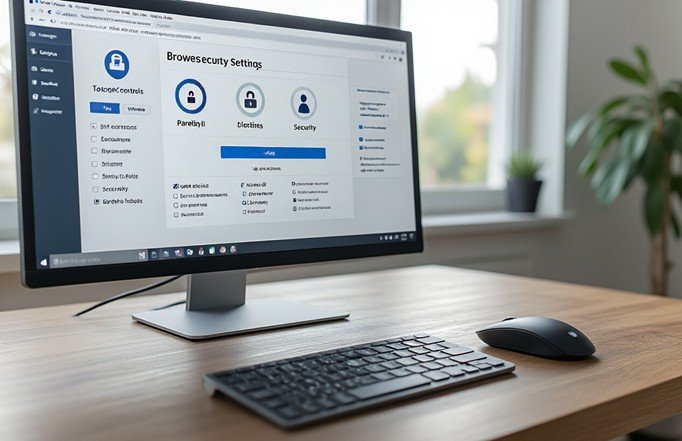
Enable Automatic Security Updates
Your browser is the gateway to everything your family does online, and keeping it updated is your first line of defense against cyber threats. Modern browsers like Chrome, Firefox, Safari, and Edge release security patches regularly to fix newly discovered vulnerabilities that hackers love to exploit.
Turn on automatic updates in your browser settings right now. These updates happen quietly in the background, so you don’t have to remember to check manually. When your browser prompts you to restart to complete an update, do it immediately rather than postponing it. Those few seconds of inconvenience could save your family from serious security breaches.
Check your browser version monthly to make sure updates are actually installing. Go to your browser’s “About” section in the settings menu – this will show your current version and trigger an update check. If
automatic updates aren’t working properly, you’ll spot the problem early and can fix it before leaving your family vulnerable.
Configure Privacy and Tracking Protection
Online trackers follow your family around the internet, building detailed profiles of your browsing habits, shopping preferences, and personal interests. This information gets sold to advertisers and sometimes ends up in the wrong hands during data breaches.
Enable your browser’s built-in tracking protection features. Chrome calls it “Enhanced Protection,” Firefox has “Strict” privacy mode, and Safari offers “Prevent Cross-Site Tracking.” These settings block most tracking scripts while still allowing websites to function normally.
Adjust cookie settings to delete them automatically when you close your browser, or set them to expire after a few days. Third-party cookies are particularly invasive since they track you across multiple websites. Most browsers now block these by default, but double-check your settings to be sure.
Consider your location sharing carefully. Websites often request your location for legitimate reasons like showing local weather or finding nearby stores, but some abuse this permission. Set your browser to ask before sharing location data rather than allowing it automatically.
Set Up Secure Password Management
Browser password managers have come a long way and offer solid protection for families just starting their digital safety journey. Chrome Password Manager, Firefox Lockwise, and Safari Keychain all generate strong, unique passwords and sync them across your devices.
Turn on password generation features so your browser creates complex passwords automatically when you sign up for new accounts. These random combinations of letters, numbers, and symbols are nearly impossible for hackers to guess, even with powerful computers.
Enable password breach monitoring in your browser settings. This feature checks your saved passwords against databases of compromised credentials from known data breaches. When it finds a match, you’ll get an alert to change that password immediately.
Set up a master password or biometric authentication to protect your saved passwords. This adds an extra security layer so someone using your computer can’t automatically access all your accounts. Your browser will require this authentication before filling in login credentials.
Activate Pop-up Blockers and Safe Browsing Warnings
Pop-up ads often carry malware or trick people into downloading dangerous software by mimicking system warnings. Modern browsers block most pop-ups automatically, but you should verify this setting is enabled and set to its strongest level.
Safe browsing features protect your family from visiting known malicious websites. Google Safe
Browsing, Microsoft SmartScreen, and similar services maintain massive databases of dangerous sites and warn you before you visit them. These warnings appear as red screens with clear messages about the potential threat.
Don’t ignore these security warnings, even if you trust the website. Legitimate sites sometimes get hacked and infected with malware without the owners knowing. When you see a warning, back away from the site and visit it later after the security issue has been resolved.
Configure download protection settings to scan files automatically before they reach your computer. This catches many malware infections before they can cause damage to your system or steal your personal information.
Create Strong Password Habits for Family Safety

Generate unique passwords for each account
Password safety for families starts with breaking the dangerous habit of reusing the same password across multiple accounts. When parents use identical passwords for their email, banking, social media, and shopping accounts, they’re essentially giving cybercriminals a master key to their entire digital life.
Think about it this way: if someone discovers your password for one account, they can immediately access everything else. This creates a domino effect that can compromise your family’s financial
security, personal information, and online safety in minutes.
Creating unique passwords means each account gets its own distinct combination of letters, numbers, and symbols. Your banking password should be completely different from your Facebook login, which should be different from your Amazon account credentials. This approach ensures that even if one account gets breached, your other accounts remain protected.
Strong passwords share several key characteristics:
- Length matters most: Aim for at least 12-16 characters
- Mix it up: Combine uppercase letters, lowercase letters, numbers, and special symbols
- Avoid personal information: Skip birthdays, names, addresses, or other easily guessed details
- Skip dictionary words: Hackers use programs that try common words and phrases
Consider using passphrases instead of traditional passwords. A phrase like “MyDog$Loves2Chase3Squirrels!” is both memorable and secure. You can create variations for different accounts by changing small elements while keeping the core structure.
Use two-factor authentication whenever possible
Two-factor authentication (2FA) adds an extra layer of protection that keeps your family accounts secure even if someone steals your password. This security feature requires two pieces of information before granting access: something you know (your password) and something you have (like your phone or an authentication app).
Popular 2FA methods include:
- Text message codes: Receive a temporary code via SMS
- Authentication apps: Use apps like Google Authenticator or Authy
- Email verification: Get confirmation codes through email
- Hardware keys: Physical devices that plug into your computer
Start enabling 2FA on your most critical accounts first. These include your email accounts, banking and
financial services, social media profiles, and any work-related accounts. Most major platforms now offer this feature, and setting it up usually takes just a few minutes.
When choosing between SMS and authentication apps, apps generally provide better security. Text messages can sometimes be intercepted, while authentication apps generate codes directly on your device. However, SMS is still much better than having no second factor at all.
Store passwords securely with password managers
Password managers solve the biggest challenge in password safety for families: remembering dozens of complex, unique passwords. These tools generate strong passwords automatically, store them securely, and fill them in when you need to log in to websites or apps.
Leading password managers include:
| Password Manager | Key Features | Best For |
|---|---|---|
| 1Password | Family sharing, secure notes | Families wanting shared vaults |
| Bitwarden | Open source, free tier | Budget-conscious users |
| LastPass | User-friendly interface | Beginners |
| Dashlane | Dark web monitoring | Security-focused users |
Family password managers let you share certain passwords with household members while keeping others private. You might share streaming service logins while keeping banking passwords separate. This feature makes it easy to give kids access to approved accounts without compromising parent internet safety.
Most password managers work across all your devices – phones, tablets, computers – so your passwords are always available when you need them. They also alert you when websites you use experience data breaches, so you know which passwords need changing immediately.
Setting up a password manager takes about 30 minutes initially, but it saves hours of password resets and security headaches down the road. Many managers offer family plans that cover multiple users at a reasonable cost, making them an excellent investment in your family’s digital safety for parents.
Teach Safe Social Media and Online Communication Practices

Adjust Privacy Settings on All Social Platforms
Most social media platforms come with default settings that favor sharing over privacy, which means parents need to take control of their digital presence. Start by reviewing the privacy settings on each platform you use – Facebook, Instagram, Twitter, LinkedIn, and TikTok all have different privacy controls that require individual attention.
On Facebook, navigate to Settings & Privacy and adjust who can see your posts, friend requests, and profile information. Set your profile to “Friends Only” rather than “Public” and review your tagged photos settings. Instagram offers similar controls through its Privacy settings – make your account private, control who can message you, and disable location sharing on posts.
Twitter’s privacy settings allow you to protect your tweets, control photo tagging, and manage who can find you by email or phone number. LinkedIn, despite being a professional network, still requires privacy management – control what others see in your profile, manage your public profile visibility, and adjust who can send you invitations.
Take time each month to review these settings, as platforms frequently update their privacy policies and default settings. What was private last month might become public after an app update. Teaching your children to do the same creates a family culture of digital privacy awareness.
Avoid Oversharing Personal Information Online
Creating boundaries around personal information sharing protects your entire family from identity theft,
stalking, and other online threats. Personal information includes obvious details like your full name, address, phone number, and birthdate, but it also extends to photos of your home, school names, work locations, and daily routines.
Before posting, ask yourself whether this information could help someone locate you or your children physically. Photos taken in front of your house, school events with visible school names, or check-ins at regular locations create a pattern that predators or criminals can exploit. Even seemingly innocent posts about vacation dates tell potential burglars when your home is empty.
Set up family rules about what can and cannot be shared online. Children should never post their school name, home address, or current location without parent approval. Create a family agreement that requires checking with parents before sharing photos that include friends, family members, or identifiable locations.
Consider the long-term implications of every post. That funny photo of your child having a tantrum might seem harmless today, but it could embarrass them years later when they’re applying for jobs or college.
Recognize and Report Cyberbullying or Harassment
Online harassment takes many forms, from direct threats and name-calling to more subtle exclusion tactics and spreading rumors. Parents need to understand these different types of cyberbullying to help their children identify and respond appropriately when it happens.
Direct harassment includes threatening messages, hate speech, or persistent unwanted contact. Indirect harassment might involve creating fake profiles, sharing embarrassing photos without permission, or organizing group harassment campaigns. Both types can cause serious emotional harm and require immediate action.
Every social platform has reporting mechanisms, but they’re not always easy to find. Facebook’s reporting system allows you to report individual posts, messages, or entire profiles. Instagram offers similar reporting options through the three-dot menu on posts or the report option on profiles. TikTok, Snapchat, and Discord all have their own reporting procedures that parents should familiarize themselves with.
Document everything before reporting – take screenshots of offensive messages, posts, or comments. This evidence helps platform moderators understand the situation and can be valuable if legal action becomes necessary. Most platforms respond within 24-48 hours, but serious threats should also be reported to local law enforcement.
Understand the Permanence of Digital Footprints
Everything shared online creates a permanent record, even when you think you’ve deleted it. Screenshots, cached pages, and data backups mean that embarrassing photos, inappropriate comments, or poor judgment calls can resurface years later. This digital permanence affects college admissions, job applications, and personal relationships.
Search engines index social media content, making it discoverable long after posting. A recruiter Googling your teenager’s name might find that inappropriate joke they posted at 14, potentially affecting their college or job prospects. Teaching this concept early helps children make better choices about their online behavior.
The “nothing ever disappears” rule applies to private messages too. Screenshots of private conversations can become public, and messaging apps often store data longer than users realize. Group chats, direct messages, and even “disappearing” content on Snapchat or Instagram Stories can be saved by recipients.
Regular digital footprint audits help families understand their online presence. Google your own name and your children’s names quarterly to see what information appears in search results. Set up Google Alerts for family members’ names to monitor when new content appears online. This proactive approach allows you to address problems before they become serious issues.
Implement Effective Parental Controls and Monitoring Tools

Set up family-friendly DNS filtering
DNS filtering acts as your first line of defense against harmful websites before they even load on your
family’s devices. Think of DNS as the internet’s phonebook – it translates website names into IP addresses. By changing your DNS settings to a family-friendly service, you can automatically block access to inappropriate content across all devices connected to your home network.
Popular family-safe DNS services include OpenDNS, CleanBrowsing, and Cloudflare for Families. These services automatically filter out adult content, malware, and phishing sites without requiring software installation on individual devices. To set this up, access your router’s admin panel (typically by typing 192.168.1.1 in your browser), locate the DNS settings, and replace the default DNS servers with your chosen family-friendly option.
The beauty of DNS filtering is its network-wide protection. Whether your family uses phones, tablets, laptops, or smart TVs, every device automatically benefits from the same filtering rules. You can also customize blocking categories – some parents prefer to block only adult content and malware, while others want broader restrictions including social media or gaming sites during homework hours.
Use built-in browser parental controls
Modern browsers offer powerful built-in safety features that many parents overlook. Chrome’s Family Link, Safari’s Screen Time controls, and Microsoft Edge’s family features provide robust protection without third-party software.
Chrome’s Family Link allows you to create supervised accounts for children, giving you control over which websites they can visit. You can approve or block specific sites, view browsing activity, and set time limits. The system works seamlessly across devices – restrictions you set on the home computer automatically apply to your child’s phone or tablet.
Safari users can leverage Screen Time’s website restrictions, which let you allow access only to specific websites or block adult content entirely. The “Limit Adult Websites” option automatically blocks known inappropriate sites while allowing educational and age-appropriate content through.
Edge offers Microsoft Family Safety integration, providing real-time notifications when your child attempts to access blocked content. You can review requests remotely and grant temporary access when appropriate, teaching children to ask permission rather than seek ways around restrictions.
Monitor browsing history without invading privacy
Effective monitoring strikes a balance between safety and respect for growing independence. The goal isn’t to spy on your children but to create opportunities for meaningful conversations about digital citizenship and online safety.
Start by establishing transparent monitoring policies. Explain to your children that you’ll periodically review browsing history together, not as punishment but as a family safety practice. This approach builds trust while maintaining necessary oversight.
Use your router’s logging features to track overall internet usage patterns rather than scrutinizing every
click. Most modern routers provide weekly or monthly reports showing which devices accessed which types of content and for how long. This bird’s-eye view helps identify concerning trends without micromanaging every online interaction.
Regular family “digital check-ins” work better than surprise inspections. Schedule monthly conversations where you review browsing history together, discussing any questionable sites or concerning searches. This collaborative approach teaches critical thinking about online content while maintaining necessary parental oversight.
Create time limits for internet usage
Digital wellness requires balanced screen time, and effective time limits help families maintain healthy relationships with technology. The key is implementing realistic restrictions that consider your family’s needs while preventing excessive use.
Router-level time controls offer the most comprehensive solution. Most modern routers include scheduling features that can automatically disable internet access for specific devices during designated times. You might block social media access during homework hours or shut down entertainment streaming after bedtime while keeping educational sites available.
Device-specific controls provide more granular management. iOS Screen Time and Android Digital Wellbeing let you set daily time limits for different app categories. Children can see their usage approaching limits, encouraging self-regulation rather than sudden cutoffs that might disrupt important activities.
Consider implementing “earned time” systems where additional screen time becomes available after completing homework, chores, or family activities. This approach teaches children to balance responsibilities with entertainment while maintaining parental oversight of overall usage patterns.
Family media agreements work exceptionally well when combined with technical controls. Create written agreements outlining when and how internet access is appropriate, involving children in establishing reasonable rules they can understand and follow.
Build Ongoing Digital Safety Conversations with Children

Create open dialogue about online experiences
Regular conversations about internet safety create the foundation for lifelong digital literacy. Parents who maintain open communication channels with their children about their online activities build trust that encourages kids to share both positive experiences and concerning encounters.
Start these conversations early and make them routine. Ask specific questions about what websites your children visit, who they talk to online, and what they find interesting or confusing about their digital experiences. Avoid turning these discussions into interrogations. Instead, show genuine curiosity about their online world and share your own experiences navigating the internet.
When children encounter something uncomfortable online – whether it’s cyberbullying, inappropriate content, or suspicious contact from strangers – they need to feel safe coming to you without fear of losing their internet privileges. Establish yourself as their go-to resource for digital problems by responding calmly and helpfully when they bring concerns to you.
Share stories about your own online experiences, including mistakes you’ve made or lessons you’ve learned. This vulnerability helps children understand that everyone faces challenges online and that asking for help shows wisdom, not weakness. Create regular opportunities for these conversations during car rides, family meals, or before bedtime when children are more likely to open up.
Establish clear family internet rules and consequences
Effective family internet safety requires clear, consistent rules that everyone understands and follows. These guidelines should cover screen time limits, appropriate websites and apps, sharing personal information, and behavior expectations for online interactions.
Work together as a family to create these rules rather than imposing them unilaterally. When children participate in rule-making, they’re more likely to follow through and understand the reasoning behind each guideline. Write down your family’s internet rules and post them where everyone can see them, such as near the computer or on the refrigerator.
Essential family internet rules should include:
- Never share personal information like full names, addresses, phone numbers, or school names with strangers
- Ask permission before downloading apps or creating new accounts
- Report uncomfortable or scary online experiences immediately
- Treat others online with the same respect you show in person
- Keep passwords private and never share account information
- Stop using devices when asked without arguing
Consequences for breaking internet rules should be clear, consistent, and proportional to the violation. Minor infractions might result in shorter screen time, while serious safety violations could temporarily remove internet access. The goal is teaching responsibility, not punishment for its own sake.
Review and update these rules regularly as children grow and their online activities change. What works for a seven-year-old won’t necessarily work for a teenager, so family internet safety conversations need to evolve with your children’s development.
Stay updated on new apps and platforms kids use
The digital landscape changes rapidly, with new social media platforms, gaming apps, and communication tools appearing constantly. Parents who want to maintain effective digital safety for parents need to stay informed about the platforms their children use and the potential risks each one presents.
Make it a habit to research any new app or platform your child wants to use. Read privacy policies, understand age requirements, and learn about the app’s communication features. Many apps that seem innocent actually allow direct messaging with strangers or have location-sharing capabilities that could compromise your child’s safety.
Ask your children to show you how their favorite apps work. This hands-on approach helps you understand not just what the app does, but how your child uses it. You might discover features you didn’t know existed or realize your child doesn’t fully understand the app’s privacy settings.
Key questions to ask about new platforms:
- What personal information does this app collect?
- Can strangers contact users directly?
- Does the app share location data?
- What are the reporting mechanisms for inappropriate content?
- How does the app handle user data and privacy?
Follow parental control resources and digital safety organizations that track emerging platforms and their risks. Many organizations publish regular updates about new apps gaining popularity among children and teens, along with safety recommendations for each platform.
Connect with other parents in your community or your children’s schools to share information about new digital trends. Parent networks often catch emerging platform risks faster than official safety resources, and sharing experiences helps everyone make better decisions about family internet safety.
Remember that staying updated doesn’t mean you need to use every app your child wants to try. Sometimes the best parental decision is saying no to platforms that don’t meet your family’s safety standards, regardless of their popularity.

Teaching parents about safe browsing isn’t just about installing software or changing settings—it’s about building a foundation of awareness and good habits that protect the whole family. From recognizing phishing attempts to setting up strong passwords, creating secure browser environments to having regular conversations with kids about online safety, these skills work together to create multiple layers of protection. When parents understand the common threats they face and know how to use the right tools, they can guide their families through the digital world with confidence.
The most important takeaway is that digital safety is an ongoing conversation, not a one-time setup. Start with the basics like updating those browser settings and creating strong passwords, then gradually introduce parental controls and monitoring tools that fit your family’s needs. Talk openly with your children about what they encounter online, and keep learning about new threats as they emerge.
Remember, you don’t have to become a tech expert overnight—small, consistent steps toward better online habits will make a real difference in keeping your family safe online.
